Running Local AI on Your iPhone: No Code, No Cloud, Just You
For the longest time, if you wanted to run AI locally, you basically needed to be a developer with a pretty decent computer. You had to install Python, download the Transformers library, pull models from Hugging Face, fiddle with tokenizer settings, manage dependencies… and everything ran on your laptop or desktop.
Doing the same thing on a phone? That was pretty much unthinkable.
But that’s no longer true. Today, I want to show you how you can run local AI inference directly on your iPhone—no code, no servers, and no data leaving your device.
And yes, it’s all happening in a simple app.
Cloud AI vs Local AI: What’s the Difference?
Before we dive into the app, let’s quickly talk about what “local AI” actually means, and how it compares to the AI tools you’re probably already using.
When you use tools like ChatGPT, Claude, Gemini, and so on, you’re using cloud AI:
- Every time you send a message,
your text is uploaded to their servers. - In some massive data center somewhere, rows and rows of GPUs process your request.
- The model generates a response and sends it back to your device.
- In many cases, the content you send is also stored on their servers in some form.

For most people and most use cases, this is totally fine.
If I’m just doing a school project and asking for help designing a poster, I don’t really care that much if that text goes to some company’s server.
But things change when your content becomes more sensitive.
Why Local AI Matters
Imagine you’re working with:
- Company secrets or internal documents
- Private photos or personal data
- Anything you simply don’t want to share with OpenAI, Apple, Google, or anyone else
In those cases, you might not feel comfortable uploading everything to a remote server, no matter how good their privacy policy sounds.
This is where local AI comes in.
With local AI:
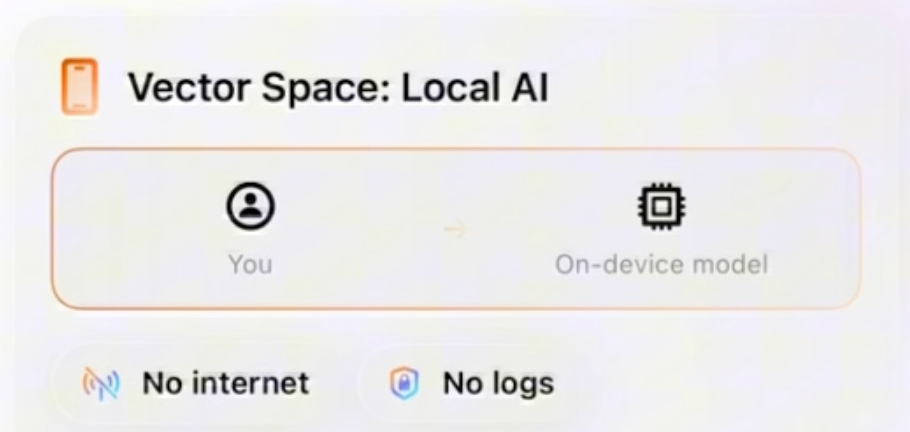
- The model runs directly on your own hardware (in this case, your iPhone).
- Your data never leaves your device.
- There’s no server involved, no upload, no external storage of your messages.
We’re essentially telling the phone:
“You do the AI work yourself.”
When to Use Local AI vs Cloud AI
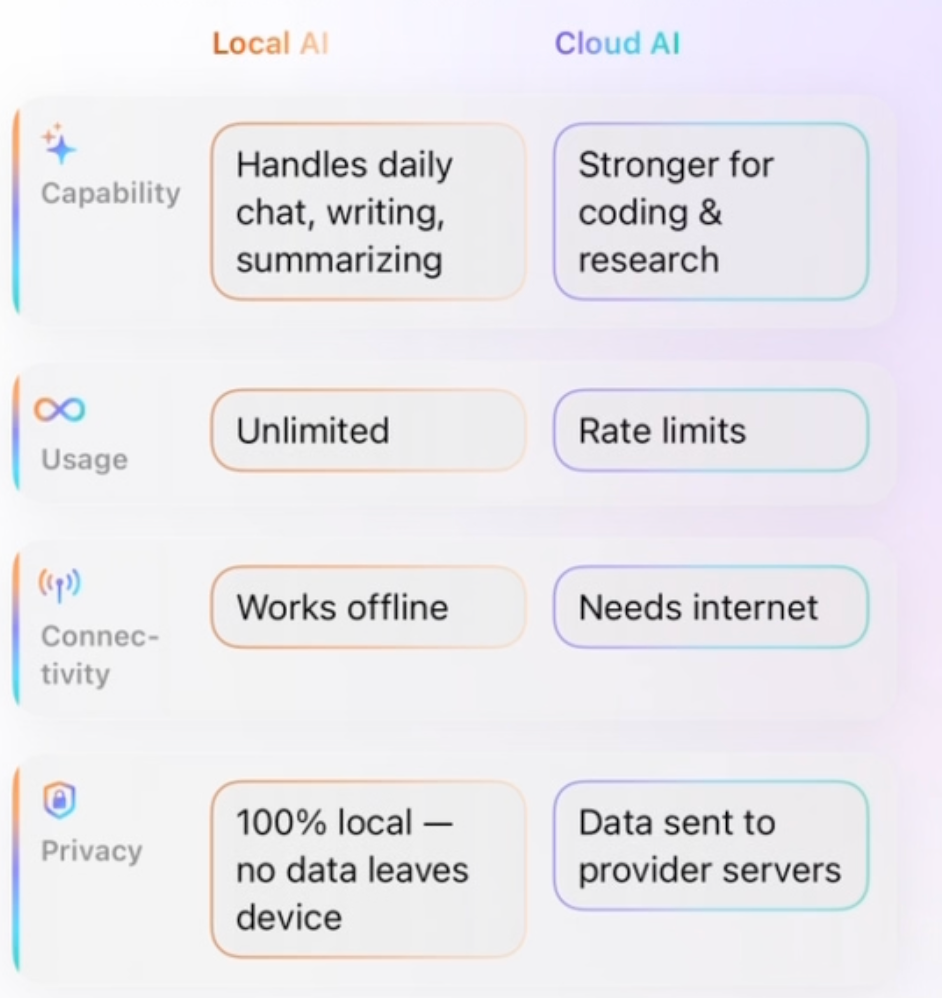
Cloud AI and local AI both have their strengths:
Cloud AI is great for:
- Very complex reasoning
- Difficult math problems
- Heavy coding assistance
- Tasks that require very large, cutting-edge models
Local AI is great for:
- Everyday chatting
- Summarizing text
- Translating content
- Light brainstorming
- Simple Q&A tasks
For a lot of daily use, local models are already good enough—and they’re getting better very quickly.
Choosing a Local Model (Like Choosing a Personality)
Just like the cloud has different AI providers—ChatGPT, Claude, Gemini—
local AI also gives you a choice of different models.
You can pick a model that fits your needs, download it once, and run it entirely on your device.
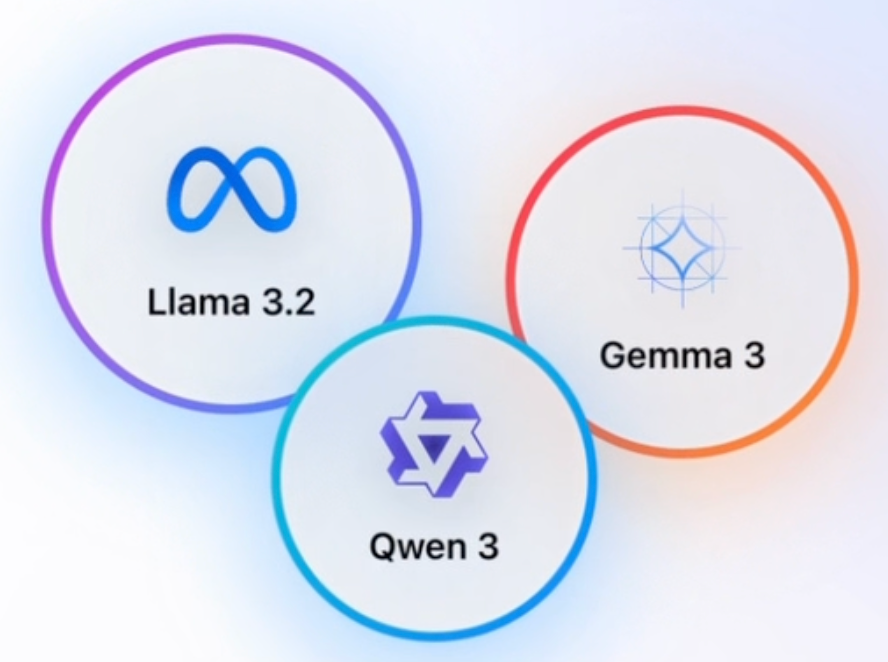
In this app, for example, the first model it automatically downloads is Qwen3. That means:
- All your conversations and data are stored only on your phone.
- Nothing is sent to any external server.
So if you care a lot about privacy, this is a great setup.
Getting Started in the App
When you open the app, you’ll first see an intro page.
This page walks you through, step by step:
- What local AI is
- How the app works
- How to start your first on-device chat
You don’t need:
- Python
- Transformers
- Hugging Face accounts
- Tokenizer configs
None of that.
The app handles the model download and setup automatically. As soon as the first model is ready, you can start chatting.
Your First Local AI Chat on iPhone
The chat interface looks very much like any other AI chat app:
- A simple message box at the bottom
- Conversation bubbles above
- Send a message, get a reply
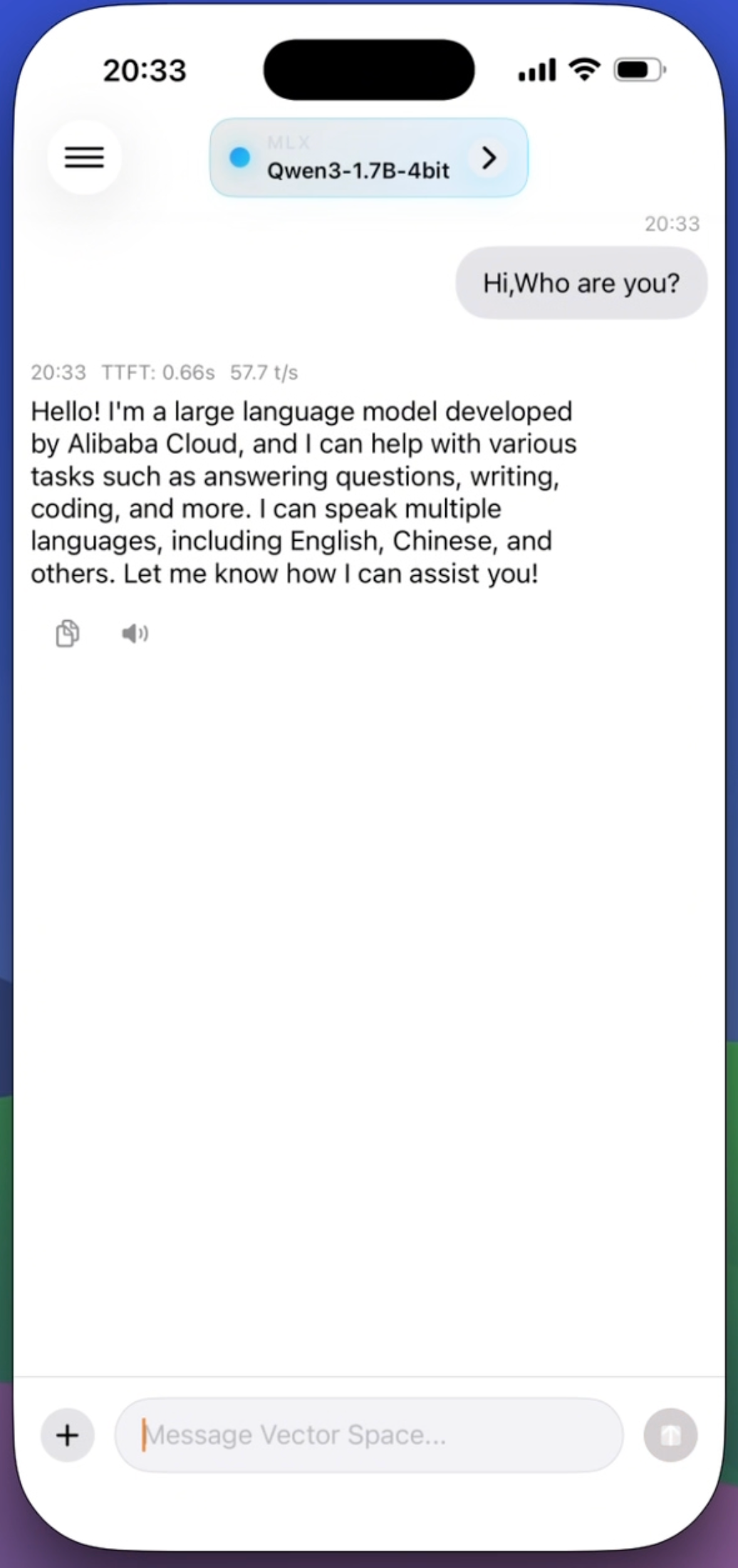
For example, you might type:
“Hi, who are you?”
And the model will respond—
generated entirely on your phone, with zero network calls to any AI provider.
That reply you see on the screen?
It’s your first local AI response on your iPhone.
Privacy by Design
To recap the key privacy point:
- All models run on-device
- All chats are stored locally
- Your data does not leave your phone
So if you’re dealing with private notes, confidential text, or personal media, you can use AI without sending anything to the cloud.
If all of this sounds exciting and you want to try local AI on your own phone, you can download Vector Space AI for free on the App Store here:
 Voila Tech K.K
Final Thoughts
Running local AI used to be something only hackers and ML engineers could pull off with powerful PCs and lots of setup.
Now, with a modern iPhone and the right app:
- You don’t write a single line of code
- You don’t touch Python or config files
- You just download a model and start chatting
Cloud AI isn’t going anywhere—it’s still amazing for big, complex tasks.
But for everyday use, especially when privacy matters, local AI on your phone is finally a real, practical option.
And that, honestly, still feels a little bit crazy.